- Home
- About us
- Curriculum
- Personal Development
- Parents
- Policies
- Jobs
- Contact
- Office 365
- DONATE



Talaxy is Alsager School’s online parent portal. It gives parents and carers access to important information about their child, including attendance, Behaviour for Learning, school reports and other information shared by the school.
Talaxy is produced by TASC Software and works as a web-based application, so it can be accessed from a computer, tablet or mobile phone.
View daily and session attendance information.
View lesson-by-lesson BFL grades entered by teachers.
Access published reports and other information shared by school.
When you are first given access to Talaxy, Alsager School will send you an invitation email.
The email will come from alsager@talaxy.app and will include a Registration link.
Click the Registration link. You can either register using your email address and create a Talaxy password, or use an external account such as Google, Apple or Microsoft.
The external account must use the same email address that the invitation was sent to.
Once registered, always access Alsager School Talaxy at:
https://alsagerschool.talaxy.app/
If you registered using an external account, use the same Google, Apple, Microsoft or other sign-in option each time you log in.
Select Forgotten password on the Talaxy login screen. Talaxy will send you a password-reset email containing a link which allows you to create a new password.
Talaxy works as a web app, so you do not need to download a separate app from the App Store or Google Play. You can add Talaxy to your Home Screen so that it opens much like a normal app.
You can also manage your Talaxy account at idp.tascsoftware.co.uk . This can be used to add another sign-in method, change your password or email address, or turn on two-factor authentication.
Talaxy allows parents and carers to see the Behaviour for Learning grade entered by teachers for individual lessons.
From the Talaxy home page, select Attendance and BFL.

Select Sessions to see the lesson-by-lesson marks for the week.
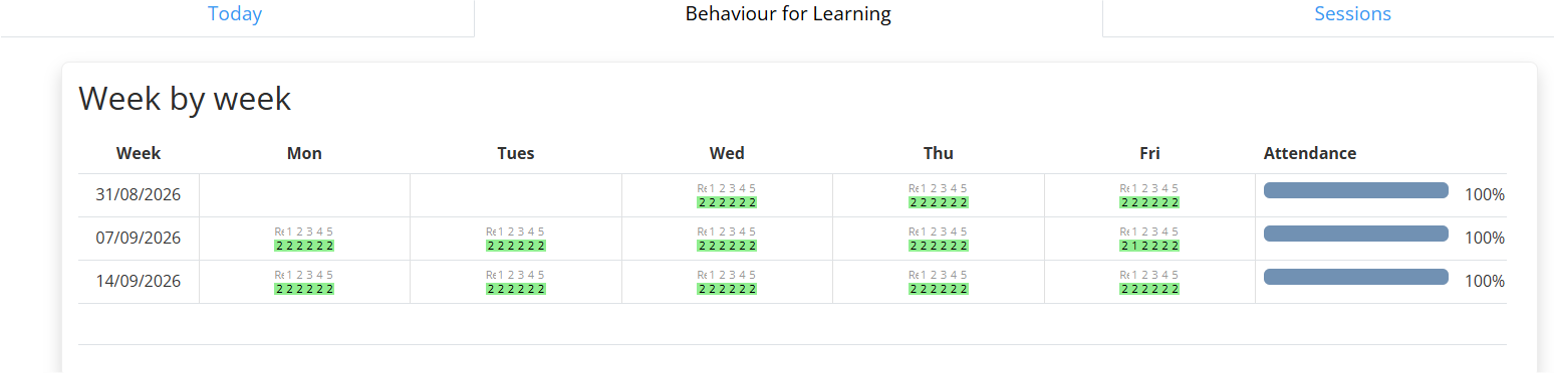
| BFL Grade | Meaning |
|---|---|
| 1 | Excellent standard |
| 2 | Good / Expected standard |
| 3 | Below Expected standard |
| 4 | Serious cause for concern |
| 5 | Internal truancy |
| 6 | Present (in another lesson) |
| 7 | Issue with homework |
| 8 | Late to the lesson |
| 9 | Missing equipment |